> For the complete documentation index, see [llms.txt](https://docs.zenml.io/llms.txt). Markdown versions of documentation pages are available by appending `.md` to page URLs; this page is available as [Markdown](https://docs.zenml.io/user-guides/production-guide/connect-code-repository.md).
# Configure a code repository
Connect a Git repository to ZenML to track code changes and collaborate on MLOps projects.
Throughout the lifecycle of a MLOps pipeline, it can get quite tiresome to always wait for a Docker build every time after running a pipeline (even if the local Docker cache is used). However, there is a way to just have one pipeline build and keep reusing it until a change to the pipeline environment is made: by connecting a code repository.
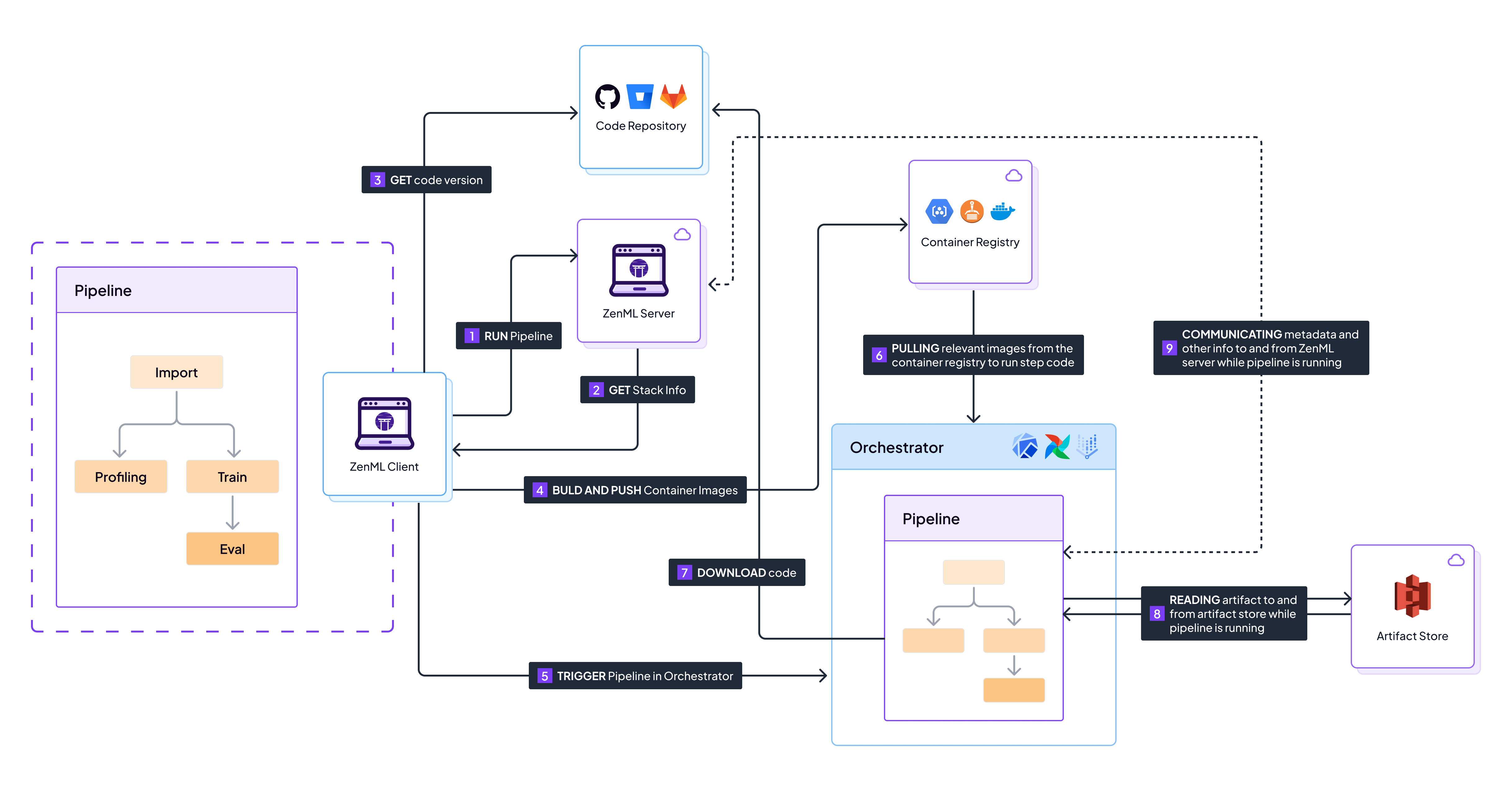
With ZenML, connecting to a Git repository optimizes the Docker build processes. It also has the added bonus of being a better way of managing repository changes and enabling better code collaboration. Here is how the flow changes when running a pipeline:
Sequence of events that happen when running a pipeline on a remote stack with a code repository
1. You trigger a pipeline run on your local machine. ZenML parses the `@pipeline` function to determine the necessary steps.
2. The local client requests stack information from the ZenML server, which responds with the cloud stack configuration.
3. The local client detects that we're using a code repository and requests the information from the git repo.
4. Instead of building a new Docker image, the client checks if an existing image can be reused based on the current Git commit hash and other environment metadata.
5. The client initiates a run in the orchestrator, which sets up the execution environment in the cloud, such as a VM.
6. The orchestrator downloads the code directly from the Git repository and uses the existing Docker image to run the pipeline steps.
7. Pipeline steps execute, storing artifacts in the cloud-based artifact store.
8. Throughout the execution, the pipeline run status and metadata are reported back to the ZenML server.
By connecting a Git repository, you avoid redundant builds and make your MLOps processes more efficient. Your team can work on the codebase simultaneously, with ZenML handling the version tracking and ensuring that the correct code version is always used for each run.
## Creating a GitHub Repository
While ZenML supports [many different flavors of git repositories](https://docs.zenml.io/how-to/project-setup-and-management/setting-up-a-project-repository/connect-your-git-repository), this guide will focus on [GitHub](https://github.com). To create a repository on GitHub:
1. Sign in to [GitHub](https://github.com/).
2. Click the "+" icon and select "New repository."
3. Name your repository, set its visibility, and add a README or .gitignore if needed.
4. Click "Create repository."
We can now push our local code (from the [previous chapters](/user-guides/production-guide/understand-stacks.md#run-a-pipeline-on-the-new-local-stack)) to GitHub with these commands:
```sh
# Initialize a Git repository
git init
# Add files to the repository
git add .
# Commit the files
git commit -m "Initial commit"
# Add the GitHub remote
git remote add origin https://github.com/YOUR_USERNAME/YOUR_REPOSITORY_NAME.git
# Push to GitHub
git push -u origin master
```
Replace `YOUR_USERNAME` and `YOUR_REPOSITORY_NAME` with your GitHub information.
## Linking to ZenML
To connect your GitHub repository to ZenML, you'll need a GitHub Personal Access Token (PAT).
How to get a PAT for GitHub
1. Go to your GitHub account settings and click on [Developer settings](https://github.com/settings/tokens?type=beta).
2. Select "Personal access tokens" and click on "Generate new token".
3. Give your token a name and a description.

4. We recommend selecting the specific repository and then giving `contents` read-only access.


5. Click on "Generate token" and copy the token to a safe place.

Now, we can install the GitHub integration and register your repository:
```sh
zenml integration install github
zenml code-repository register --type=github \
--owner= --repository= \
--token=
```
Fill in ``, ``, ``, and `` with your details.
Your code is now connected to your ZenML server. ZenML will automatically detect if your source files are being tracked by GitHub and store the commit hash for each subsequent pipeline run.
You can try this out by running our training pipeline again:
```python
# This will build the Docker image the first time
python run.py --training-pipeline
# This will skip Docker building
python run.py --training-pipeline
```
You can read more about [the ZenML Git Integration here](https://docs.zenml.io/how-to/project-setup-and-management/setting-up-a-project-repository/connect-your-git-repository).
---
# Agent Instructions
This documentation is published with GitBook. GitBook is the documentation platform designed so that both humans and AI agents can read, navigate, and reason over technical content effectively. Learn more at gitbook.com.
## Querying This Documentation
If you need additional information that is not directly available in this page, you can query the documentation by asking a question.
Perform an HTTP GET request on the following URL with the `ask` and `goal` query parameters:
```
GET https://docs.zenml.io/user-guides/production-guide/connect-code-repository.md?ask=&goal=
```
`ask` is the immediate question: it should be specific, self-contained, and written in natural language.
`goal` is what the user is ultimately trying to achieve, the reason they need the answer. Sharing it helps GitBook give you a better, more relevant answer. A goal is most helpful when it describes the outcome the user wants rather than restating the question. For example, with `ask=how do I create an API token`, a goal like `automate deployments from our CI pipeline` lets GitBook tailor the answer to that use case.
The response will contain a direct answer to the question and relevant excerpts and sources from the documentation.
Use this mechanism when the answer is not explicitly present in the current page, you need clarification or additional context, or you want to retrieve related documentation sections.