> For the complete documentation index, see [llms.txt](https://docs.zenml.io/llms.txt). Markdown versions of documentation pages are available by appending `.md` to page URLs; this page is available as [Markdown](https://docs.zenml.io/user-guides/production-guide/configure-pipeline.md).
# Configure your pipeline to add compute
Add more resources to your pipeline configuration.
Now that we have our pipeline up and running in the cloud, you might be wondering how ZenML figured out what sort of dependencies to install in the Docker image that we just ran on the VM. The answer lies in the [runner script we executed (i.e. run.py)](https://github.com/zenml-io/zenml/blob/main/examples/quickstart/run.py#L215), in particular, these lines:
```python
import os
# Assuming training_pipeline is imported from your pipeline module
# from my_project.pipelines import training_pipeline
pipeline_args = {}
pipeline_args["config_path"] = os.path.join(
config_folder, "training_rf.yaml"
)
# Configure the pipeline
training_pipeline_configured = training_pipeline.with_options(**pipeline_args)
# Create a run
training_pipeline_configured()
```
The above commands [configure our training pipeline](/user-guides/starter-guide/create-an-ml-pipeline.md#configure-with-a-yaml-file) with a YAML configuration called `training_rf.yaml` (found [here in the source code](https://github.com/zenml-io/zenml/tree/main/examples/quickstart)). Let's learn more about this configuration file.
{% hint style="info" %}
The `with_options` command that points to a YAML config is only one way to configure a pipeline. We can also directly configure a pipeline or a step in the decorator:
```python
from zenml import pipeline
@pipeline(settings=...)
```
However, it is best to not mix configuration from code to ensure separation of concerns in our codebase.
{% endhint %}
## Breaking down our configuration YAML
The YAML configuration of a ZenML pipeline can be very simple, as in this case. Let's break it down and go through each section one by one:
### The Docker settings
```yaml
settings:
docker:
required_integrations:
- sklearn
requirements:
- pyarrow
```
The first section is the so-called `settings` of the pipeline. This section has a `docker` key, which controls the [containerization process](/user-guides/production-guide/cloud-orchestration.md#orchestrating-pipelines-on-the-cloud). Here, we are simply telling ZenML that we need `pyarrow` as a pip requirement, and we want to enable the `sklearn` integration of ZenML, which will in turn install the `scikit-learn` library. This Docker section can be populated with many different options, and correspond to the [DockerSettings](https://sdkdocs.zenml.io/latest/core_code_docs/core-config.html#zenml.config.docker_settings) class in the Python SDK.
### Associating a ZenML Model
The next section is about associating a [ZenML Model](/user-guides/starter-guide/track-ml-models.md) with this pipeline.
```yaml
# Configuration of the Model Control Plane
model:
name: breast_cancer_classifier
version: rf
license: Apache 2.0
description: A breast cancer classifier
tags: ["breast_cancer", "classifier"]
```
You will see that this configuration lines up with the model created after executing these pipelines:
{% tabs %}
{% tab title="CLI" %}
```shell
# List all versions of the breast_cancer_classifier
zenml model version list breast_cancer_classifier
```
{% endtab %}
{% tab title="Dashboard" %}
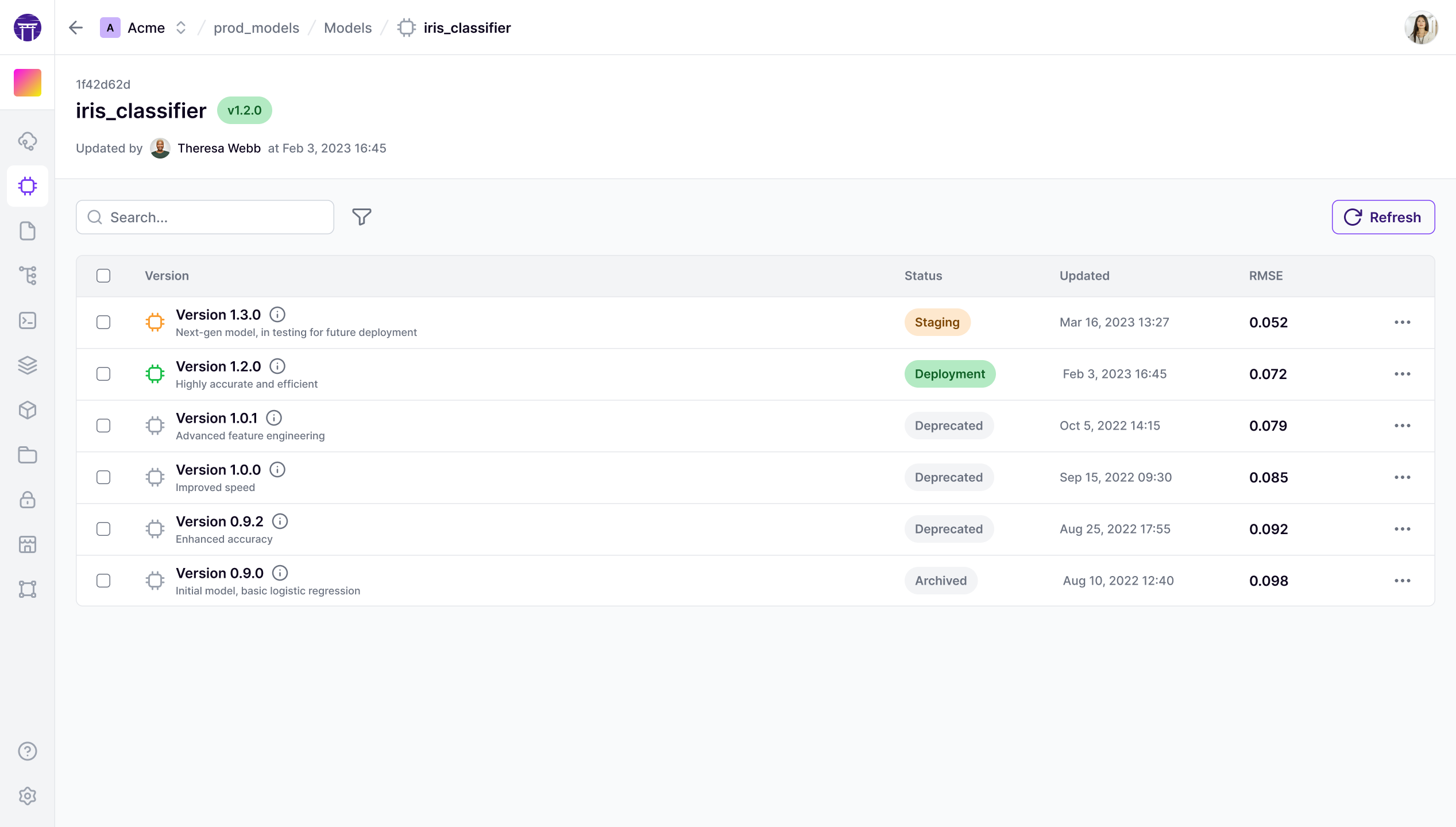
[ZenML Pro](https://www.zenml.io/pro) ships with a Model Control Plane dashboard where you can visualize all the versions:
All model versions listed
{% endtab %}
{% endtabs %}
### Passing parameters
The last part of the config YAML is the `parameters` key:
```yaml
# Configure the pipeline
parameters:
model_type: "rf" # Choose between rf/sgd
```
This parameters key aligns with the parameters that the pipeline expects. In this case, the pipeline expects a string called `model_type` that will inform it which type of model to use:
```python
from zenml import pipeline
@pipeline
def training_pipeline(model_type: str):
...
```
So you can see that the YAML config is fairly easy to use and is an important part of the codebase to control the execution of our pipeline. You can read more about how to configure a pipeline in the [how to section](https://docs.zenml.io/concepts/steps_and_pipelines/configuration), but for now, we can move on to scaling our pipeline.
## Scaling compute on the cloud
When we ran our pipeline with the above config, ZenML used some sane defaults to pick the resource requirements for that pipeline. However, in the real world, you might want to add more memory, CPU, or even a GPU depending on the pipeline at hand.
This is as easy as adding the following section to your local `training_rf.yaml` file:
```yaml
# These are the resources for the entire pipeline, i.e., each step
settings:
...
# Adapt this to vm_gcp accordingly
orchestrator:
memory: 32 # in GB
...
steps:
model_trainer:
settings:
orchestrator:
cpus: 8
```
Here we are configuring the entire pipeline with a certain amount of memory, while for the trainer step we are additionally configuring 8 CPU cores. The `orchestrator` key corresponds to the [`SkypilotBaseOrchestratorSettings`](https://sdkdocs.zenml.io/latest/integration_code_docs/integrations-skypilot.html#zenml.integrations.skypilot) class in the Python SDK.
Instructions for Microsoft Azure Users
As discussed [before](/user-guides/production-guide/cloud-orchestration.md), we are using the [Kubernetes orchestrator](https://docs.zenml.io/stacks/orchestrators/kubernetes) for Azure users. In order to scale compute for the Kubernetes orchestrator, the YAML file needs to look like this:
```yaml
# These are the resources for the entire pipeline, i.e., each step
settings:
...
resources:
memory: "32GB"
...
steps:
model_trainer:
settings:
resources:
memory: "8GB"
```
{% hint style="info" %}
Read more about settings in ZenML [here](https://docs.zenml.io/concepts/steps_and_pipelines/configuration) and [here](https://docs.zenml.io/user-guides/tutorial/distributed-training)
{% endhint %}
Now let's run the pipeline again:
```python
python run.py --training-pipeline
```
Now you should notice the machine that gets provisioned on your cloud provider would have a different configuration as compared to last time. As easy as that!
Bear in mind that not every orchestrator supports `ResourceSettings` directly. To learn more, you can read about [`ResourceSettings` here](https://docs.zenml.io/concepts/steps_and_pipelines/configuration), including the ability to [attach a GPU](https://docs.zenml.io/user-guides/tutorial/distributed-training#1-specify-a-cuda-enabled-parent-image-in-your-dockersettings).
---
# Agent Instructions
This documentation is published with GitBook. GitBook is the documentation platform designed so that both humans and AI agents can read, navigate, and reason over technical content effectively. Learn more at gitbook.com.
## Querying This Documentation
If you need additional information that is not directly available in this page, you can query the documentation by asking a question.
Perform an HTTP GET request on the following URL with the `ask` and `goal` query parameters:
```
GET https://docs.zenml.io/user-guides/production-guide/configure-pipeline.md?ask=&goal=
```
`ask` is the immediate question: it should be specific, self-contained, and written in natural language.
`goal` is what the user is ultimately trying to achieve, the reason they need the answer. Sharing it helps GitBook give you a better, more relevant answer. A goal is most helpful when it describes the outcome the user wants rather than restating the question. For example, with `ask=how do I create an API token`, a goal like `automate deployments from our CI pipeline` lets GitBook tailor the answer to that use case.
The response will contain a direct answer to the question and relevant excerpts and sources from the documentation.
Use this mechanism when the answer is not explicitly present in the current page, you need clarification or additional context, or you want to retrieve related documentation sections.