> For the complete documentation index, see [llms.txt](https://docs.zenml.io/llms.txt). Markdown versions of documentation pages are available by appending `.md` to page URLs; this page is available as [Markdown](https://docs.zenml.io/kitaru/agent-harness-platform/02-sandbox.md).
# Sandbox
Stage 1 made a crash survivable. When a turn finished, its output went to durable storage, so a retry picked up the saved work instead of paying for the same model call twice. The agent itself was deliberately plain: a PydanticAI agent with one tool, `exec`, that ran shell commands directly in the host process.
That host process is what this stage fixes. Running commands on your own machine is fine for a first demo. It turns into a liability the moment the agent does something you did not foresee, and an agent doing something you did not foresee is the normal case, not the rare one.
{% hint style="info" %}
This walkthrough uses `stage_2_sandboxed_exec.py` from the runnable Agent Harness Platform example. If you have not cloned the repo yet, start with [Get the code](/kitaru/agent-harness-platform/agent-harness-platform.md#get-the-code) on the overview page.
{% endhint %}
## The agent's shell is your shell
Think about what the `exec` tool actually is. The agent picks a shell command, the host runs it, and the output goes back to the model. Most of the time the command is harmless: an `ls` to look around, a `cat` to read a file, a `grep` to find something. The trouble is that the same opening that lets the agent run `ls` lets it run `rm -rf` against the wrong directory, or a script that quietly fills the disk, or a `curl ... | bash` it talked itself into.
In Stage 1 those commands run with whatever access the worker has. On your laptop that is your home directory and every other project sitting beside this one. On a server it is the production worker's filesystem. The agent reasons about the files it can see, and the files it can see are yours, so one wrong command can delete things that had nothing to do with the task.
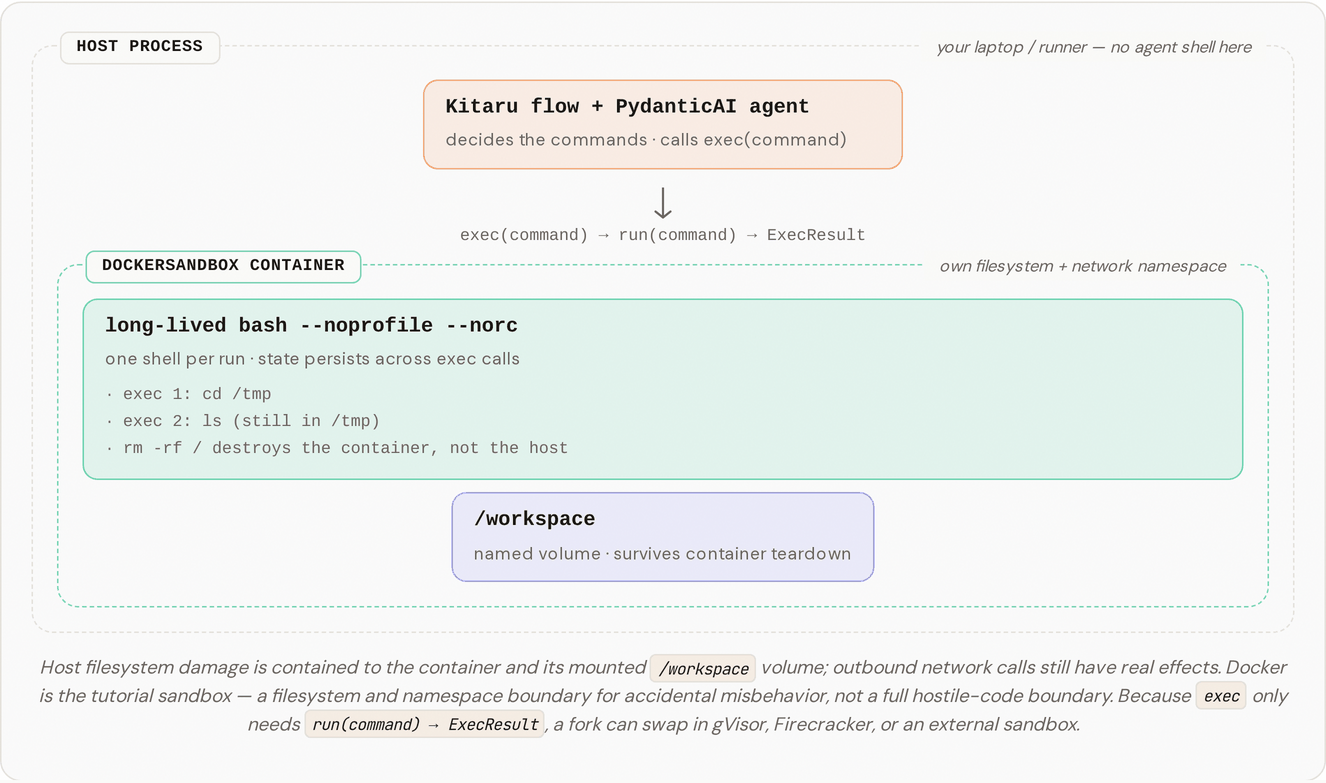
Stage 2 gives the agent a room of its own. Each run happens inside a `with DockerSandbox(...)` block, and every shell command runs inside that container instead of on the host. The container has its own filesystem, its own process table, and its own network view, so a bad command lands on a throwaway container and a mounted workspace rather than reaching back to your machine.
## One-time setup
Build the sandbox image once:
```bash
docker build -t agent-harness-platform-sandbox -f docker/sandbox.Dockerfile docker/
```
If you would rather build everything at once, `bash setup.sh` builds this image along with the proxy and mock images that stages 4 and up use.
## Run it
```bash
DISABLE_CACHE=1 uv run python stage_2_sandboxed_exec.py
```
The flow runs two `agent.run_sync()` turns that share a single `with DockerSandbox(...)`. Turn 1 looks around the machine and `cd`s into `/tmp`. Turn 2 writes a `summary.txt` "in the current directory," and because the container's shell is long-lived, turn 1's `cd` is still in effect, so the file lands at `/tmp/summary.txt` even though turn 2 never names an absolute path.
`DISABLE_CACHE=1` forces every checkpoint to re-execute. Leave it off and a repeat run serves both turns from cache, and you never get to watch the sandbox run a command. While you are learning what it does, you want the commands to really run.
## What you should see in the logs
Every line that starts with `[sandbox]` is a command running inside the container, never on your host:
```
[sandbox] Started container e87af8e85ec2 (image=agent-harness-platform-sandbox, /workspace ← workspace_…)
Kitaru: Checkpoint `default` started.
[sandbox] $ cat /etc/os-release
[sandbox] → exit=0, stdout=285 chars, cwd=/workspace
[sandbox] $ uname -r
[sandbox] → exit=0, stdout=16 chars, cwd=/workspace
[sandbox] $ whoami
[sandbox] → exit=0, stdout=4 chars, cwd=/workspace
[sandbox] $ cd /tmp
[sandbox] → exit=0, stdout=0 chars, cwd=/tmp ← cwd changed
Kitaru: Checkpoint `default` finished in 21.0s.
Kitaru: Checkpoint `default_2` started.
[sandbox] $ ls -la && pwd
[sandbox] → exit=0, stdout=99 chars, cwd=/tmp ← still /tmp from turn 1
[sandbox] $ cat > summary.txt <<'EOF' … ← writes /tmp/summary.txt
[sandbox] → exit=0, stdout=237 chars, cwd=/tmp
Kitaru: Checkpoint `default_2` finished in 13.1s.
[sandbox] Stopping container e87af8e85ec2
```
The line to watch is `cwd=/tmp`. Turn 1 runs `cd /tmp`; when turn 2 starts, `ls -la && pwd` still reports `/tmp`. The working directory carried across the turn boundary because both turns spoke to the same shell process inside the container.
You can watch that container live from another terminal while the flow runs:
```bash
docker ps # see agent_harness_platform_sandbox_
docker exec -it agent_harness_platform_sandbox_ bash # peek inside the live container
```
## What just happened?
`DockerSandbox` is a context manager. On the way in it runs `docker run -d` to start the container; on the way out it runs `docker stop`. Each step prints a `[sandbox]` line and records structured metadata through `kitaru.log()`, so the same events show up in the dashboard too.
The `exec` tool does not know any container exists. `build_tools` takes an optional `sandbox` argument, and when one is passed in, `exec` sends each command through `sandbox.run(command)` instead of running it in the host process. Same tool, same agent code. The only thing that changed between Stage 1 and Stage 2 is whether a sandbox was handed in.
Two details make the container behave like a working environment rather than a fresh shell per command.
The first is one long-lived shell. Every `run(command)` call goes through a single `bash --noprofile --norc` process inside the container. Shell state, such as a `cd`, an `export`, an open file descriptor, or a background job, survives from one `exec` call to the next, the same way it would in a terminal you left open. The host writes each command into that shell's stdin and reads the output back up to a unique marker line. That is why turn 1's `cd /tmp` was still in effect for turn 2.
The second is a workspace that outlives the container. A named volume, `workspace_`, is mounted at `/workspace`. Files written there survive the container being stopped and started again, which is what lets a flow pause and resume later without losing its working files.
## Try one small change
Stage 1's durability did not disappear when the sandbox arrived. This time leave `DISABLE_CACHE` off so the cache is live, and make the flow crash between the two turns:
```bash
FORCE_FAILURE=1 uv run python stage_2_sandboxed_exec.py
```
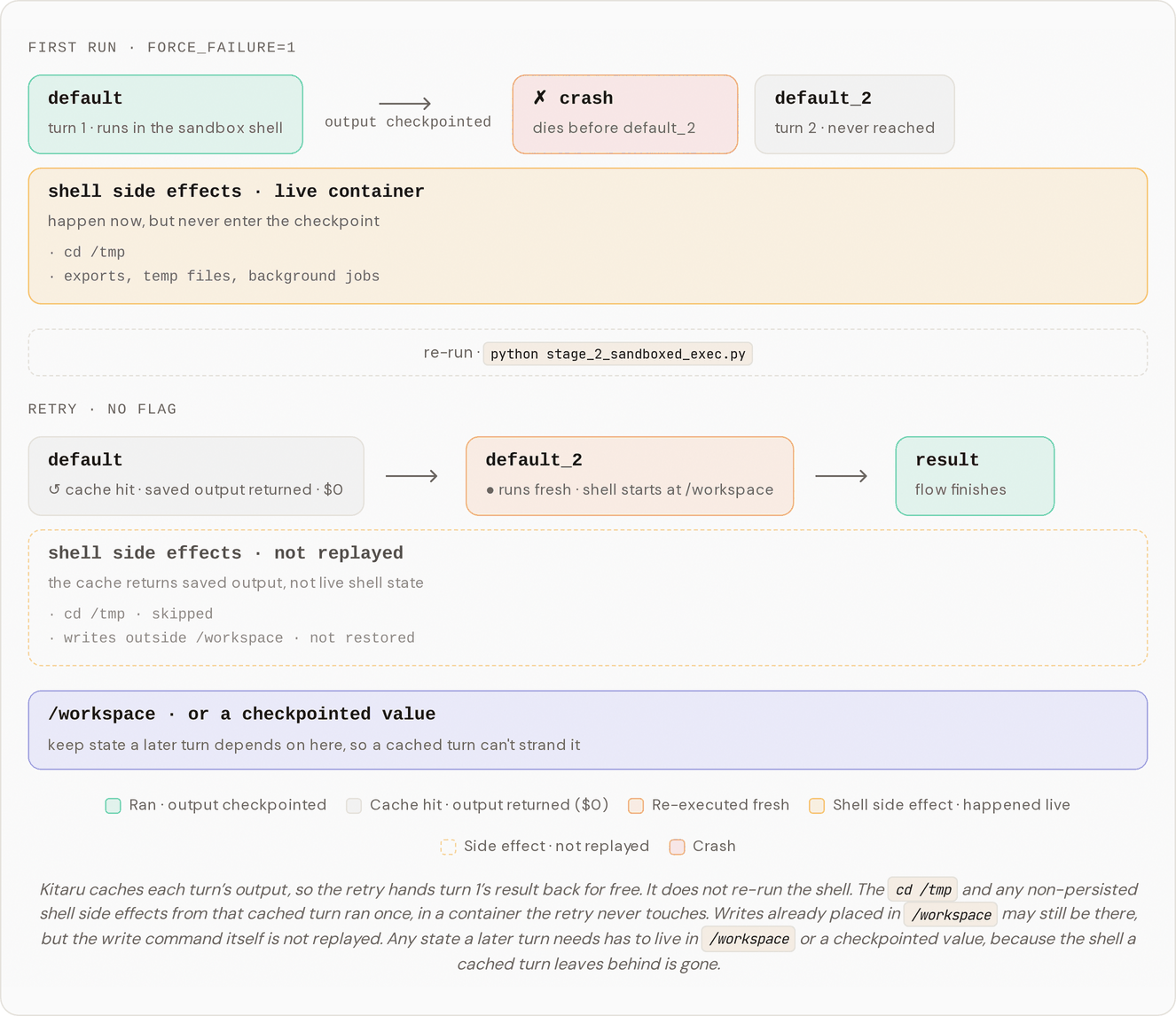
Turn 1 runs its commands in the container and gets checkpointed, then the flow raises before turn 2 starts. Run it once more with no flags, and turn 1's saved output comes back from cache while turn 2 runs fresh.
There is one important difference from Stage 1: cached shell turns do not replay their side effects. The saved output comes back, but the earlier `cd /tmp` or file writes do not run again. If the next live turn needs filesystem state, put it in `/workspace` or write it as its own checkpointed value. The diagram and warning below spell this out because it is exactly the kind of detail that matters when agents start touching real files.
## What's simplified for the tutorial
Docker here is a workspace boundary, not a wall against hostile code. It gives a real filesystem, process, and network boundary, which is the right size for the risk in this example: a confused agent that runs a bad `rm` hits the container and a mounted workspace, not your home directory. It is not built to hold code that is actively trying to escape. The container shares one Linux kernel with the host, so a kernel exploit or a careless mount can still reach across. For genuinely untrusted code you want stronger isolation, which the upgrade path below covers.
Shell state is also not carried across separate runs, and that is deliberate. The bash process dies when the container stops, and the example does not try to replay shell state into the next run. Bash commands have side effects (`rm`, `git push`, `curl POST`, `psql -c "INSERT…"`) that a `cd` plus `declare -px` snapshot cannot capture or undo, so "restoring" such a snapshot would silently drop every real mutation while looking like it recreated the session. If the agent needs state to survive across runs, it should write to `/workspace` (the named volume, which outlives container teardown) or persist specific values with [`kitaru.save()`](/kitaru/guides/artifacts.md) and reload them with `kitaru.load()` at the top of the next run.
{% hint style="warning" %}
This is the one spot where the Stage 1 durability story needs a caveat. Kitaru caches the agent's *reasoning*: the model responses, the tool-call decisions, the turn's output as a whole. It does **not** re-run the bash side effects of a cached turn. If turn 1 ran `cd /tmp && touch summary.txt` and then got cached, a later replay hands back turn 1's saved output without re-running the `cd` or re-creating the file, and the next live turn runs against a fresh shell. So a command with real side effects should not share a turn boundary with the model calls that decided to issue it.
{% endhint %}
## Production upgrade path
Stage 2 uses [Docker](https://docs.docker.com/engine/security/), but the `exec` tool never learns that. It calls `sandbox.run(command)` and expects an `ExecResult` back (an exit code plus captured stdout). Anything that satisfies that one method is a valid sandbox, so changing the backend never touches the agent's tool wiring. `DockerSandbox` is simply the implementation that runs easily on a laptop.
When you need a real boundary against untrusted code, that seam is where you swap it. A few backends to reach for, roughly in order of how much isolation they buy:
* [gVisor](https://gvisor.dev/) runs each container against a user-space kernel, so syscalls hit gVisor rather than the host kernel directly. Stronger than plain Docker, still container-shaped.
* [Kata Containers](https://katacontainers.io/) wraps each container in a lightweight VM, so a kernel escape lands in the VM instead of on the host.
* [Firecracker](https://firecracker-microvm.github.io/) microVMs give each run its own minimal VM with a small attack surface (the same technology behind AWS Lambda).
* Hosted sandboxes like [E2B](https://e2b.dev/), [Modal](https://modal.com/products/sandboxes), or [Daytona](https://www.daytona.io/) run commands on isolated infrastructure, so nothing executes on your own machine.
* [WebAssembly](https://webassembly.org/) isolates by default, though arbitrary `bash` is not its strong suit, so it fits best when you can constrain what the agent runs.
Credentials are the next gap. If the next tool needs a secret, the obvious shortcut is to put that secret in the worker's environment, which puts it one shell command away from the agent.
## Where this leaves us
Stage 2 took the agent's shell off your host and put it in a container. A bad command now ruins a throwaway workspace instead of your home directory, and the durability from Stage 1 still holds around it.
What the agent does inside that sandbox is still decided in Python, though. Its procedure, the steps it follows and the checks it runs, lives in the system prompt as a string literal in the code. The next stage pulls that procedure out into a markdown file an operator can edit, so changing how the agent behaves no longer means editing and redeploying code.
---
# Agent Instructions
This documentation is published with GitBook. GitBook is the documentation platform designed so that both humans and AI agents can read, navigate, and reason over technical content effectively. Learn more at gitbook.com.
## Querying This Documentation
If you need additional information that is not directly available in this page, you can query the documentation dynamically by asking a question.
Perform an HTTP GET request on the current page URL with the `ask` query parameter, and the optional `goal` query parameter:
```
GET https://docs.zenml.io/kitaru/agent-harness-platform/02-sandbox.md?ask=&goal=
```
`ask` is the immediate question: it should be specific, self-contained, and written in natural language.
`goal` is optional and describes the broader end goal you are ultimately trying to accomplish on behalf of the user. GitBook uses it to tailor the answer towards what is most useful for that goal.
The response will contain a direct answer to the question and relevant excerpts and sources from the documentation.
Use this mechanism when the answer is not explicitly present in the current page, you need clarification or additional context, or you want to retrieve related documentation sections.